
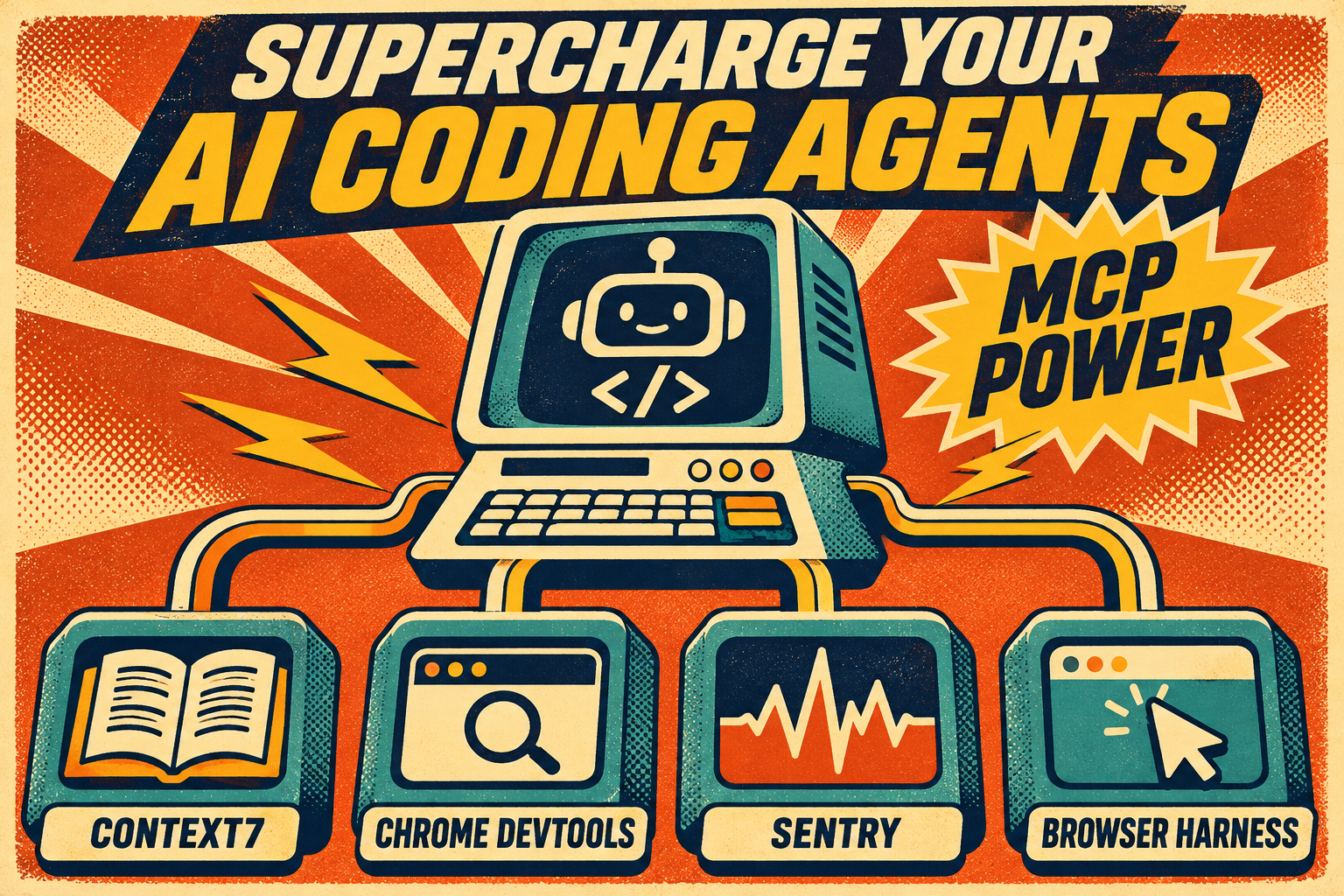
Supercharging AI Coding Agents with MCP Servers: Context7, Chrome DevTools, Sentry, and Browser Harness
Modern AI coding agents like OpenAI’s Codex CLI and Anthropic’s Claude Code are powerful, but they are limited by their training data and lack of live access to the tools and environments developers actually use. The Model Context Protocol (MCP) solves this by letting agents call external tools in a standardized way. Four especially useful MCP servers (and related tools) for day-to-day coding work are Context7, Chrome DevTools MCP, Sentry MCP, and Browser Harness.
This guide covers what each does, how to install and configure them for Codex CLI, how to use them effectively after setup, and how the same tools work with Claude Code.
Why These Tools Matter
Coding agents frequently generate outdated code, struggle to debug frontend issues they cannot see, and have no native connection to production error data. These four tools address those gaps:
- Context7 supplies current, version-specific library documentation.
- Chrome DevTools MCP gives the agent eyes and hands inside a real Chrome browser for debugging and performance work.
- Sentry MCP connects the agent to live error data and Seer root-cause analysis.
- Browser Harness provides lightweight control of your already-logged-in Chrome with relatively low token overhead.
Together they turn a coding agent from a smart text generator into something that can ground itself in current docs, inspect real pages, triage production issues, and interact with authenticated web apps.
Context7: Always-Current Library Docs
Context7 (from Upstash) is an MCP server that retrieves up-to-date documentation and code examples for libraries and frameworks. Instead of relying on the model’s training cutoff, the agent can call resolve-library-id (to map a name like “Next.js” or “Supabase” to a precise library ID) and query-docs (to pull relevant sections for a specific question or task).
When to use it
Any time the agent is writing or modifying code against a library whose APIs change frequently—React, Next.js, Tailwind, Prisma, Supabase, Stripe, etc. It is especially valuable for framework-specific features that appeared after the model’s training cutoff.
Setup for Codex CLI
The simplest path is:
npx ctx7 setup --codexAlternatively:
codex mcp add context7 -- npx -y @upstash/context7-mcpOr add the remote endpoint in ~/.codex/config.toml:
[mcp_servers.context7]
url = "https://mcp.context7.com/mcp"
A free API key from the Context7 dashboard raises rate limits; the server also works without one.
How to use it after configuration
Simply mention the library and the task, or explicitly say “use context7.” Examples:
- “Use Context7 to show the current Next.js App Router pattern for server actions.”
- “Look up the latest Supabase auth docs for email/password signup and implement it.”
The agent will resolve the library ID and query the relevant documentation before writing code.
Chrome DevTools MCP: Debugging and Performance in a Real Browser
The official Chrome DevTools MCP server (from the Chrome team) lets an agent control and inspect a live Chrome instance via the DevTools Protocol. It can navigate, click, type, take screenshots, inspect the console and network, capture performance traces, run Lighthouse audits, and examine memory.
It is particularly strong for frontend debugging and performance work because it exposes the same surfaces developers use in the DevTools UI.
Setup for Codex CLI
codex mcp add chrome-devtools -- npx chrome-devtools-mcp@latestOr in ~/.codex/config.toml:
[mcp_servers.chrome-devtools]
command = "npx"
args = ["-y", "chrome-devtools-mcp@latest"]
You can optionally connect to an already-running Chrome with remote debugging enabled (--browser-url=http://127.0.0.1:9222).
How to use it after configuration
Useful prompts include:
- “Open http://localhost:3000, check the console for errors, and tell me what’s failing.”
- “Take a performance trace of the homepage and identify the main long tasks.”
- “Inspect the network requests when I submit the login form and show me any failed calls.”
The server starts Chrome automatically the first time a tool needs it (unless you point it at an existing instance).
Sentry MCP: Production Error Context and Seer Analysis
Sentry’s official MCP server lets an agent search issues and events, read full stack traces, examine performance data, and (on sentry.io) invoke Seer—Sentry’s AI root-cause analysis. You can scope the connection to a specific organization or project so the agent stays focused.
Setup for Codex CLI
codex mcp add sentry --url https://mcp.sentry.dev/mcpThen run codex mcp login sentry (or complete the OAuth flow). For project-scoped access use a URL like https://mcp.sentry.dev/mcp/{orgSlug}/{projectSlug}.
A local stdio option also exists via npx @sentry/mcp-server@latest if you prefer a token-based setup or self-hosted Sentry.
How to use it after configuration
Typical workflows:
- “Show me the top unresolved issues in the last 24 hours and their stack traces.”
- “Pull the latest error for issue XYZ and use Seer to explain the root cause.”
- “List performance regressions on the checkout flow this week.”
Once Seer is enabled in your Sentry organization and your GitHub repos are connected, the agent can surface suggested fixes grounded in both the error data and your source code.
Browser Harness: Lightweight Control of Your Logged-In Chrome
Browser Harness (from the Browser Use project) is an open-source (MIT) tool that lets agents drive the Chrome browser you already have open and logged into. It talks directly over the Chrome DevTools Protocol and is designed to be token-efficient. The agent can also write reusable helper functions as it works, so the harness improves over time.
In independent evaluations it has shown significantly lower median token usage than both Playwright MCP and Chrome DevTools MCP on comparable tasks while achieving similar success rates—largely because it avoids heavy accessibility-tree snapshots and works against a real, already-authenticated session.
Setup for Codex CLI
The recommended path is to paste this prompt into Codex:
Install or upgrade browser-harness to the latest stable version with uv using Python 3.12, register the skill from `browser-harness skill`, and connect it to my browser. Ask whether I want local browser recordings enabled; default to no and preserve my existing preference on upgrades. Follow https://github.com/browser-use/browser-harness/blob/main/install.md if setup or connection fails.On first run the agent opens chrome://inspect/#remote-debugging. Enable remote debugging and click Allow when prompted. An MCP server variant (browser-harness-mcp) is also available for clients that prefer a fixed tool set.
How to use it after configuration
Because it uses your real Chrome profile, it excels at tasks that require existing logins:
- “Open my X profile, find the last 20 video posts, and download them.”
- “Go to the internal dashboard, export the weekly report as CSV, and save it to the project folder.”
- “Fill out the staging form while logged in as the test user and screenshot the confirmation.”
How to Use These Tools After Installation and Configuration
Once the servers are registered:
- Restart or start a fresh Codex session so it loads the new MCP servers.
- Run
/mcp(in the Codex TUI) orcodex mcp listto confirm they are connected. - Speak naturally. You do not need special syntax for most tasks—simply describe what you want. Explicit phrases such as “use Context7,” “check the console with Chrome DevTools,” or “look this up in Sentry” help when the agent has multiple tools available.
- Approve tool calls when prompted (Codex’s approval mode is configurable per server or per tool in
config.toml). - For browser tools, keep an eye on the Chrome window; you can always interrupt or close it.
Practical combinations that work well:
- Context7 + coding task → grounded implementation.
- Chrome DevTools MCP or Browser Harness while iterating on a frontend feature → immediate visual/console feedback.
- Sentry MCP when a user reports a production error → pull the exact stack trace and Seer analysis before editing code.
Setting These Tools Up with Claude Code
All four work with Claude Code. Claude Code stores user-scoped servers in ~/.claude.json and project-scoped servers in a .mcp.json file at the project root (which can be committed).
Context7
- Easiest:
npx ctx7 setup --claude - Plugin:
/plugin marketplace add upstash/context7then/plugin install context7@context7-marketplace, followed by/mcpto sign in. - Manual remote:
claude mcp add --transport http context7 https://mcp.context7.com/mcp
Chrome DevTools MCP
claude mcp add chrome-devtools --scope user -- npx chrome-devtools-mcp@latestOr install the official plugin for MCP + skills:
/plugin marketplace add ChromeDevTools/chrome-devtools-mcp
/plugin install chrome-devtools-mcp@chrome-devtools-plugins
Sentry MCP
claude mcp add --transport http sentry https://mcp.sentry.dev/mcpThen run /mcp inside Claude Code to complete OAuth. Project-scoped URLs work the same way. An official plugin is also available.
Browser Harness
Paste the same setup prompt used for Codex into Claude Code. For the MCP server variant:
claude mcp add browser-harness -- uvx --from 'browser-harness[mcp]' browser-harness-mcpAfter adding any server, run /mcp or claude mcp list to verify the connection. Claude Code’s scope flags (--scope user vs --scope project) let you decide whether a server is personal or shared with the team via .mcp.json.
Choosing the Right Browser Tool
| Tool | Best For | Browser Session | Token Profile | Notes |
|---|---|---|---|---|
| Chrome DevTools MCP | Debugging, performance, Lighthouse, console/network | Clean or connected Chrome | Higher | Official Google tooling |
| Browser Harness | Logged-in personal or internal sites, lighter automation | Your real Chrome | Lower | Self-healing helpers |
| Playwright MCP | Cross-browser testing, isolated profiles | Usually clean profile | Medium-High | Strong for CI-style tests |
Use Chrome DevTools MCP when you need deep inspection or performance data. Use Browser Harness when you need to operate inside an already-authenticated session with less context overhead. Many developers keep both available and let the agent (or their prompt) choose.
Final Recommendations
Start with Context7—it has the highest everyday value and the lowest setup friction. Add Chrome DevTools MCP or Browser Harness next if you do significant frontend work. Add Sentry MCP if you already use Sentry for error monitoring; the combination of live stack traces plus Seer is especially powerful for production triage.
All of these servers are actively maintained, support both stdio and remote transports where applicable, and work across Codex CLI and Claude Code. Configuration lives in the usual places (~/.codex/config.toml for Codex, claude mcp add / ~/.claude.json / .mcp.json for Claude Code), and once connected the agent can discover and call the tools automatically.
With these four pieces in place, a coding agent stops being limited to what it was trained on and starts working with the same current documentation, browser, and production data that you use.