
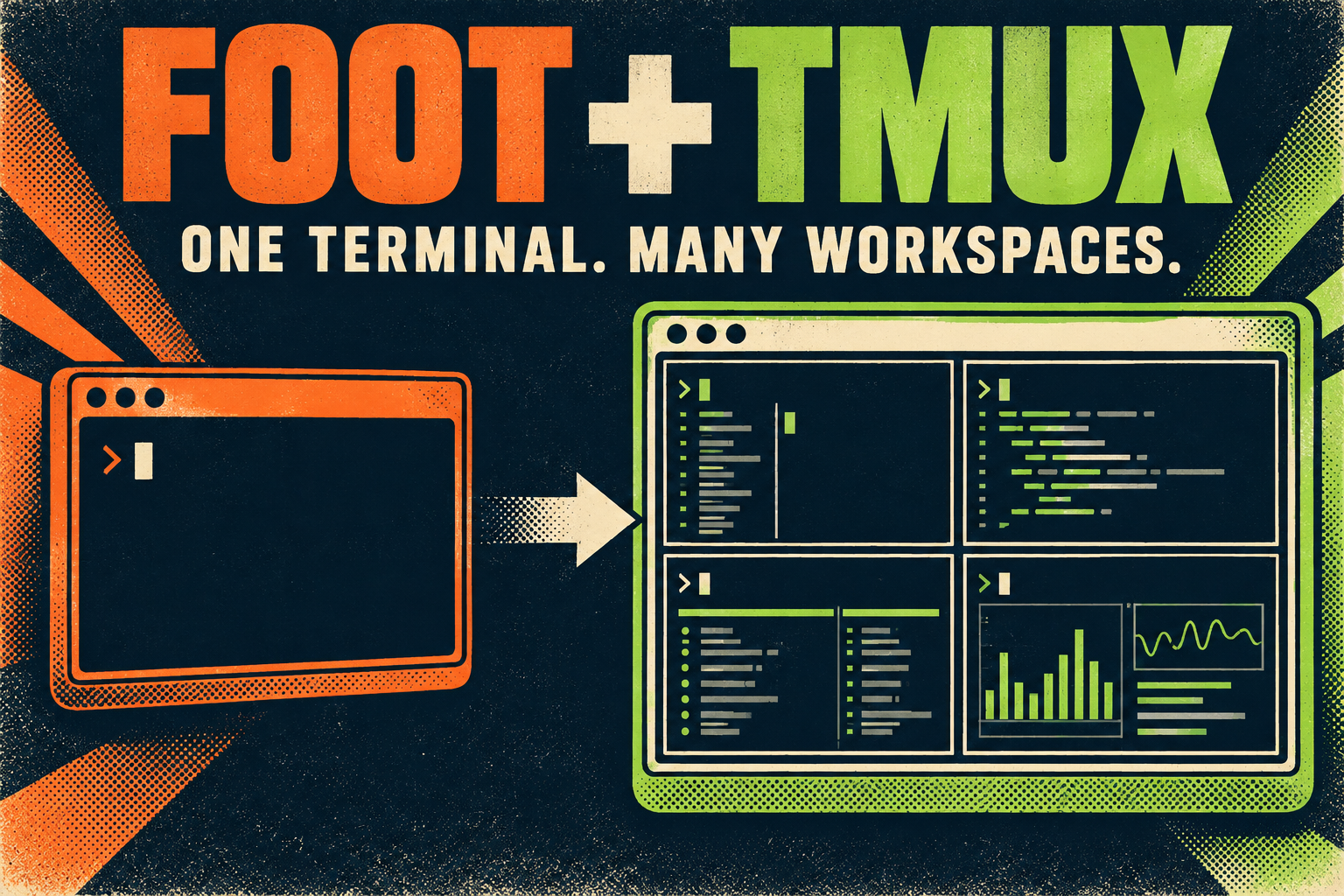
You open a terminal in Omarchy. Someone tells you to use tmux. Another guide mentions Foot. Are these competing apps? Do you need to choose one?
No. They do different jobs, and they work together.
Foot is the terminal emulator that displays your terminal. Tmux runs inside it and organizes your work into sessions, windows, and panes.
Foot is the window; tmux is the workspace inside it
Think of Foot as a screen you look through. It displays text, accepts keyboard input, and connects you to a command-line program—usually your shell. Tmux is the workspace manager behind that screen. It lets you keep several command-line work areas organized without opening a separate desktop window for each one.
| Tool | What it does | Simple analogy |
|---|---|---|
| Foot | Displays the terminal and handles keyboard input and output | The window into your work |
| Tmux | Manages terminal sessions, windows, and split panes | Several virtual workspaces behind that window |
You do not replace Foot with tmux. You run tmux inside Foot—or inside another terminal emulator such as Ghostty, Kitty, or Alacritty.
What Foot does in current Omarchy
Foot is a lightweight Wayland terminal emulator. In an ordinary setup, one Foot window opens one shell. It deliberately leaves features such as native tabs, split panes, and persistent workspace management to other tools.
The current Omarchy source manual identifies Foot as the default terminal. Press Super + Return to launch the configured terminal. On most PC keyboards, Super is the Windows-logo key; on many Mac keyboards, it is Command.
A version note: the older Omarchy 3 manual lists Alacritty as the default. If an older guide differs from your desktop, check your installed version and configuration rather than assuming something is broken. Terminal choices and custom keybindings can also change what opens.
Closing an ordinary terminal window ends its connection to the shell. Foreground commands commonly terminate too. Background-process behavior can vary, but a plain Foot window does not provide tmux-style session persistence.
What tmux adds: sessions, windows, and panes
Tmux is a terminal multiplexer. The upstream getting-started guide describes its client/server model: the terminal connects to a tmux server that manages the work.
- Session: a named collection of work, such as
client-a. - Window: a work area within a session, roughly comparable to a tab.
- Pane: one section of a split window, usually running its own shell or program.
For example, one client session could contain an editor window, a server window, and a third window split between logs and command-line tasks. A second session can hold another project’s work.
Several Foot windows can attach to different sessions—or even the same session. Alternatively, keep one terminal window open and switch sessions inside tmux.
The Omarchy shortcuts to learn first
The current Omarchy hotkey reference documents these bindings:
- Super + Return: open a regular terminal.
- Super + Alt + Return: open a tmux terminal.
- Ctrl + Space: tmux prefix; Ctrl + B also works in the documented Omarchy configuration.
- Prefix, then s: show sessions.
- Prefix, then d: detach from the current session.
- Super + Alt + K: show Omarchy’s tmux bindings.
“Prefix, then” means a sequence, not one giant key chord. Hold Ctrl and press Space, release both, then press the lowercase letter. For example, Ctrl + Space followed by d detaches.
Outside Omarchy, stock tmux normally uses Ctrl + B. Local customization can override either prefix. Consult the installed bindings if a shortcut behaves differently.
Try it: leave a session and come back
Start with a regular terminal using Super + Return. From a shell that is not already inside tmux, create a named session:
tmux new-session -s learningYou are now working inside tmux. Run a harmless command such as pwd, then press the prefix followed by d. You should return to the shell outside tmux.
List the sessions and reconnect:
tmux list-sessions
tmux attach-session -t learning
The original session is still there. If you close the terminal after detaching, reopen a terminal and run the attach command again.
If a session named learning already exists, attach to it rather than trying to create the same name twice. If you launched directly into tmux with Super + Alt + Return, use the session picker instead of nesting another tmux instance.
Detach means “leave this workspace running.” Typing exit means “end this shell.” They are not interchangeable. Exiting the final pane can end its window and session.
What survives—and what does not
Under normal conditions, a tmux session survives the loss of its attached terminal client while the tmux server and its host remain running. It does not make programs immune to crashes, explicit termination, system shutdown, or logout policies that stop user processes.
For remote work, connect by SSH and start tmux on the remote host. Later, SSH into that same host and attach there. Running tmux only on your laptop does not keep a remote session alive if that remote connection and its processes end.
A reboot is different from detaching. The optional tmux-resurrect plugin can save and restore workspace information such as layouts and working directories, with restoration support for selected programs. It does not freeze arbitrary running processes and resume their memory after reboot. Save your files and plan for commands that need restarting. Do not assume the plugin is installed just because tmux is available.
The beginner takeaway
Use Foot when you need a terminal window. Add tmux when you want organized projects, split views, and the ability to detach and return.
Learn three actions first: open a tmux terminal, detach, and reattach. Everything else can wait.
Want practice with the desktop shortcuts? Try Loudernet’s Omarchy Hotkey Trainer.
Checked against the current Omarchy source documentation on October 21, 2026. Defaults and shortcuts may differ on older or customized installations.
Sources: Foot project · Omarchy dotfiles reference · Omarchy hotkeys · Tmux getting started · Tmux Resurrect